 CalcMark
The CalcMark Editor
A terminal-based editor with live results, markdown preview, autocomplete, and keyboard-driven workflows.
The CalcMark editor is a terminal UI (TUI) that runs entirely in your terminal. You write CalcMark on the left, and results appear on the right — instantly, as you type.
cm                    # New document
cm budget.cm          # Open existing file
cm remote <url>       # Open a remote document
Preview Modes #
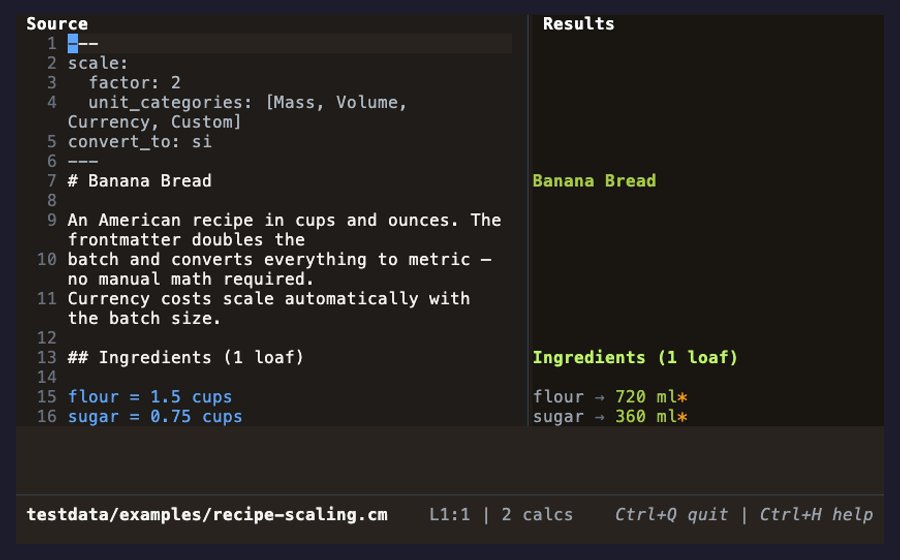
The right pane has three modes. Press Ctrl+P to cycle through them:
Results #
The default mode. Shows calculation results aligned with their source lines. Markdown lines are blank on the right — you only see what CalcMark computed.
Side-by-Side #
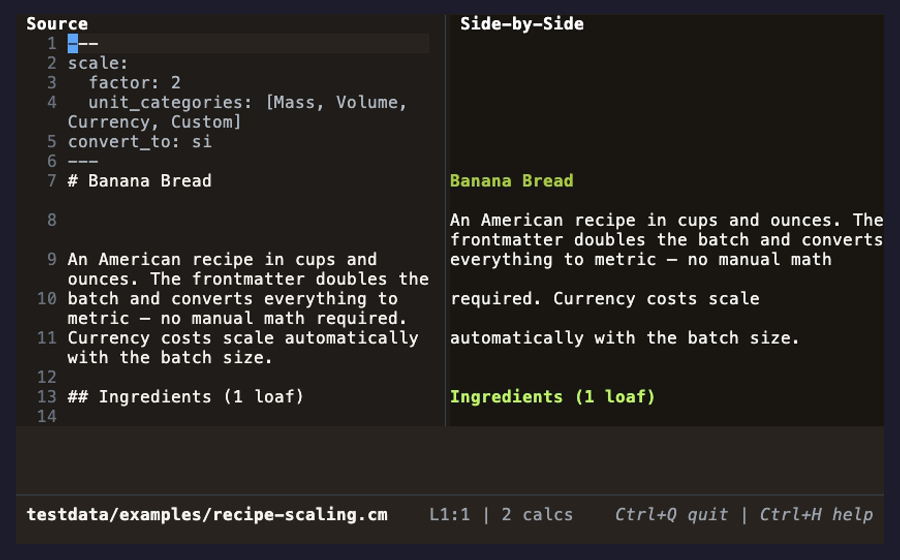
Shows rendered markdown alongside calculation results. Headings, lists, and prose are styled with terminal colors. This is useful when your document mixes explanatory text with calculations and you want to see both.
Reading Mode #
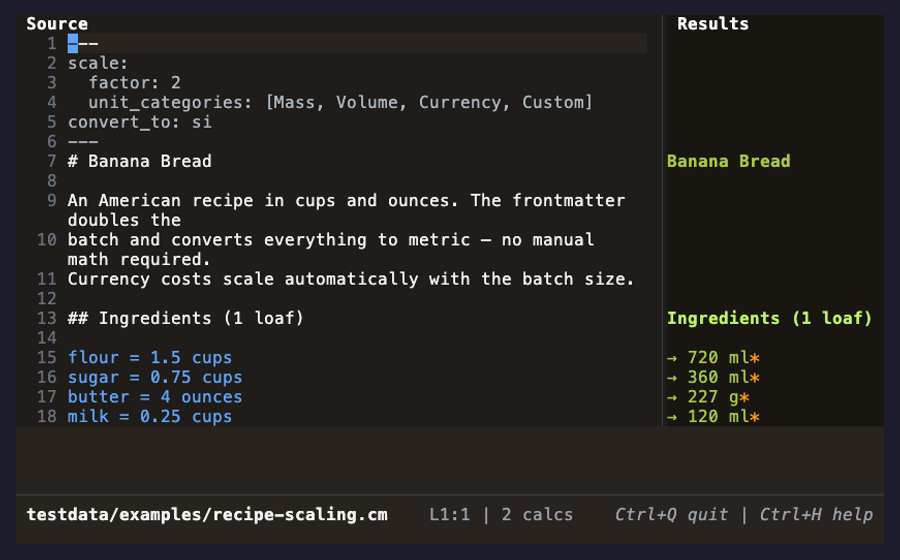
A full-document reading view. Markdown is rendered with styled headings, lists, and emphasis. Calculation results appear inline where the expressions are. Template variables (double-brace syntax) are resolved to their computed values.
Reading Mode has its own scroll position — you can scroll the preview independently of the source. Navigation jumps between sections: each heading, paragraph, list, and calculation is a stop.
Keyboard Shortcuts #
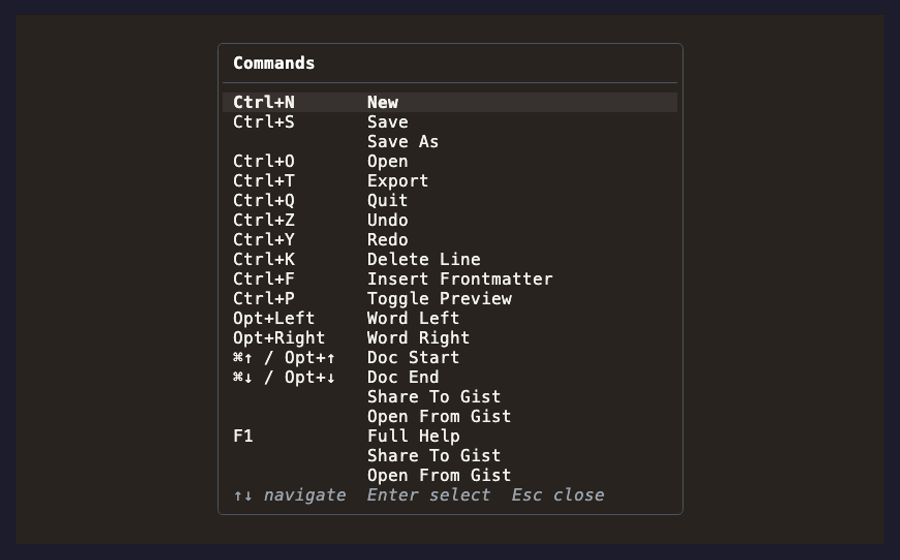
Press Ctrl+H or F1 to open the help overlay. It lists every shortcut and lets you execute commands directly — highlight an action and press Enter.
File Operations #
| Shortcut | Action |
|---|---|
| Ctrl+S | Save |
| Ctrl+N | New document |
| Ctrl+O | Open file (file picker) |
| Ctrl+T | Export to Markdown, JSON, or HTML |
| Ctrl+Q | Quit |
Editing #
| Shortcut | Action |
|---|---|
| Ctrl+Z / ⌘Z | Undo |
| Ctrl+Y / ⌘⇧Z | Redo |
| Ctrl+K | Delete line |
| Ctrl+F | Insert frontmatter template |
| Ctrl+C / ⌘C | Copy selection |
| Ctrl+X / ⌘X | Cut selection |
| Ctrl+V / ⌘V | Paste |
| ⌘A | Select all |
Navigation #
| Shortcut | Action |
|---|---|
| ↑ ↓ | Move cursor up/down |
| ← → | Move cursor left/right |
| Opt+← / Opt+B | Word left |
| Opt+→ / Opt+F | Word right |
| ⌘← / Ctrl+A / Home | Line start |
| ⌘→ / Ctrl+E / End | Line end |
| PgUp / PgDn | Page up/down |
| ⌘↑ / Opt+↑ | Document start |
| ⌘↓ / Opt+↓ | Document end |
View #
| Shortcut | Action |
|---|---|
| Ctrl+P | Cycle preview mode (Results → Side-by-Side → Reading Mode) |
| Ctrl+H / F1 | Toggle help overlay |
| Esc | Close any overlay or popup |
Autocomplete #
Start typing a function name, unit, or variable — after two characters, a popup appears with matching suggestions. Each suggestion shows a category tag:
- fn — Built-in functions (
compound,throughput,read, etc.) - nl — Natural language syntax examples
- var — Variables defined earlier in your document
Use Tab or ↓ to select a suggestion, Enter to insert it, Esc to dismiss.
The context footer (below the editor) shows parameter help when your cursor is inside a function call. It displays the expected parameter name and example values for the argument you’re currently typing.
File Picker #
Ctrl+O opens a file browser overlay. Navigate directories with arrow keys, press ← to go up a directory, and Enter to open a .cm file. Press Tab to switch focus to the filename field where you can type a name directly.
The same picker appears for Save As and Export, with context-appropriate titles and hints.
Export #
Ctrl+T opens the export dialog. Choose a format:
- Markdown (
.md) — Rendered markdown with results inline - JSON (
.json) — Structured output with values, types, and units - HTML (
.html) — Styled HTML document
Pick a destination directory and filename, then press Enter to export.
Context Footer #
The bottom of the editor shows context-sensitive information:
- Variable references — When your cursor is on a calculation line, the footer shows the current values of variables referenced in that expression.
- Error diagnostics — When a line has a parse or evaluation error, the footer shows the error message and a hint for fixing it.
- Function parameter help — When typing inside a function call, the footer shows the parameter name and example values.
- Autocomplete details — When the autocomplete popup is open, the footer shows the full description of the selected suggestion.
Status Bar #
The status bar at the bottom shows:
- Current filename (or
[New]for unsaved documents) [+]indicator when the document has unsaved changes- Cursor position (
L5:12) and calc block count - Selection character count when text is selected
EVAL...indicator during evaluation- Save confirmation and error messages
Color Modes #
CalcMark detects your terminal’s color scheme automatically. Override it with:
cm --color-mode dark    # Force dark mode
cm --color-mode light   # Force light mode
Or set it permanently in your configuration file.